Find a Dealer

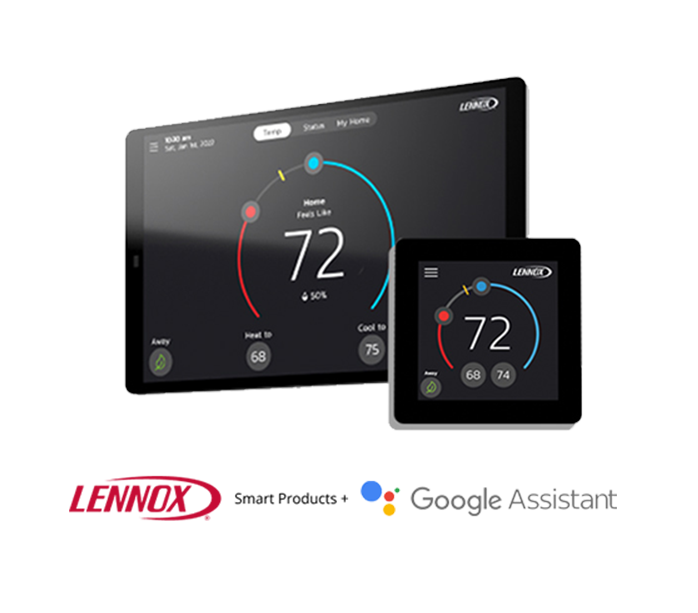
Lennox + Google Assistant

Connect Your Thermostat to Google

Lennox + Google Assistant
Description

Use Google Assistant to get more out of your Lennox thermostat. With simple voice commands, you can check temperatures, adjust settings, and switch modes hands-free. Learn how to connect your Lennox Smart Thermostat to Google Assistant 

Your Home Comfort Command Center

Just a few quick steps to get your Lennox Smart Thermostat integrated with Google Assistant.

How to Rename a Lennox Wireless Extender

The Lennox Wireless Extender improves the connection between the Lennox S40 Smart Thermostat and smart sensors, such as the Lennox Smart Room Sensor and the Lennox Smart Air Quality Monitor, in larger homes or areas with reduced coverage or “dead spots”. This strengthened connection nearly doubles the coverage area and enhances reliability, performance and usability.

How to Rename a Lennox Wireless Extender

The Lennox Wireless Extender improves the connection between the Lennox S40 Smart Thermostat and smart sensors, such as the Lennox Smart Room Sensor and the Lennox Smart Air Quality Monitor, in larger homes or areas with reduced coverage or “dead spots”. This strengthened connection nearly doubles the coverage area and enhances reliability, performance and usability.

How to Rename a Lennox Wireless Extender

The Lennox Wireless Extender improves the connection between the Lennox S40 Smart Thermostat and smart sensors, such as the Lennox Smart Room Sensor and the Lennox Smart Air Quality Monitor, in larger homes or areas with reduced coverage or “dead spots”. This strengthened connection nearly doubles the coverage area and enhances reliability, performance and usability.

Get Started

To start using your Smart Thermostat with Amazon Alexa, you will need:

How to Install the Lennox Wireless Extender

The Lennox Wireless Extender improves the connection between the Lennox S40 Smart Thermostat and smart sensors, such as the Lennox Smart Room Sensor and the Lennox Smart Air Quality Monitor, in larger homes or areas with reduced coverage or “dead spots”. This strengthened connection nearly doubles the coverage area and enhances reliability, performance and usability.

How to Replace or Remove a Lennox Wireless Extender

The Lennox Wireless Extender improves the connection between the Lennox S40 Smart Thermostat and smart sensors, such as the Lennox Smart Room Sensor and the Lennox Smart Air Quality Monitor, in larger homes or areas with reduced coverage or “dead spots”. This strengthened connection nearly doubles the coverage area and enhances reliability, performance and usability.

How to Rename a Lennox Wireless Extender

  1. Install or open the Lennox Smart Thermostat app. Go to System Settings and tap on the Wireless Extender.

  2. You can tap on Extender Name and type in your desired Wireless Extender name.

How to Rename a Lennox Wireless Extender

  1. Install or open the Lennox Smart Thermostat app. Go to System Settings and tap on the Wireless Extender.

  2. You can tap on Extender Name and type in your desired Wireless Extender name.

How to Rename a Lennox Wireless Extender

  1. Install or open the Lennox Smart Thermostat app. Go to System Settings and tap on the Wireless Extender.

  2. You can tap on Extender Name and type in your desired Wireless Extender name.

Get Started

  1. An Amazon Eco/Dot linked to your Amazon account

  2. The Amazon Alexa mobile app installed on your phone

  3. A Lennox Smart Thermostat with a registered Smart Thermostat account

How to Install the Lennox Wireless Extender

  1. Install the Lennox Smart Thermostat app. Scan the QR code to download the app and user guide and view how-to videos.

  2. Plug in the Wireless Extender into a power outlet. Make sure there is no metal in close proximity as it may interfere with the wireless connection.

  3. Add the Wireless Extender to the thermostat BLE mesh network. A wizard will walk you through the steps to add the Wireless Extender.

  4. Confirm the desired Wireless Extender location has adequate signal strength.

How to Replace or Remove a Lennox Wireless Extender

  1. Install or open the Lennox Smart Thermostat app. Go to System Settings and tap on the Wireless Extender.

  2. Tap either Replace or Remove buttons.

Key Features and Tools

Knowing the details of a few key features will make both you and your home smarter.

FAQs

Find answers to common questions about your thermostat from setup and Wi-Fi connection to troubleshooting and energy-saving tips.

You can create a Lennox account from either your smart phone or directly on the thermostat. Launch the Lennox Home App and select the Sign up option.

Lorem ipsum dolor sit amet, consectetur adipiscing elit, sed do eiusmod tempor incididunt ut labore et dolore magna aliqua. Ut enim ad minim veniam, quis nostrud exercitation ullamco laboris nisi ut aliquip ex ea commodo consequat. Duis aute irure dolor in reprehenderit in voluptate velit esse cillum dolore eu fugiat nulla pariatur. Excepteur sint occaecat cupidatat non proident, sunt in culpa qui officia deserunt mollit anim id est laborum.

Lorem ipsum dolor sit amet, consectetur adipiscing elit, sed do eiusmod tempor incididunt ut labore et dolore magna aliqua. Ut enim ad minim veniam, quis nostrud exercitation ullamco laboris nisi ut aliquip ex ea commodo consequat. Duis aute irure dolor in reprehenderit in voluptate velit esse cillum dolore eu fugiat nulla pariatur. Excepteur sint occaecat cupidatat non proident, sunt in culpa qui officia deserunt mollit anim id est laborum.

Lorem ipsum dolor sit amet, consectetur adipiscing elit, sed do eiusmod tempor incididunt ut labore et dolore magna aliqua. Ut enim ad minim veniam, quis nostrud exercitation ullamco laboris nisi ut aliquip ex ea commodo consequat. Duis aute irure dolor in reprehenderit in voluptate velit esse cillum dolore eu fugiat nulla pariatur. Excepteur sint occaecat cupidatat non proident, sunt in culpa qui officia deserunt mollit anim id est laborum.

Lorem ipsum dolor sit amet, consectetur adipiscing elit, sed do eiusmod tempor incididunt ut labore et dolore magna aliqua. Ut enim ad minim veniam, quis nostrud exercitation ullamco laboris nisi ut aliquip ex ea commodo consequat. Duis aute irure dolor in reprehenderit in voluptate velit esse cillum dolore eu fugiat nulla pariatur. Excepteur sint occaecat cupidatat non proident, sunt in culpa qui officia deserunt mollit anim id est laborum.